
✓ AV Scanned Clean
Build: 0.5.0
Size: 21 KB
Updated: 2026.09.01
WorldBox – Optime
⬇ Jump to Download Mirrors
WorldBox – Optime (0.5.0) for Windows PC: WorldBox is the ULTIMATE god simulator and sandbox game. A petri dish for your fantasy civilizations. Create your own world or destroy it using many powers. Watch civilizations grow, form kingdoms, colonize new lands, sail to far continents, wars to ignite, empires to fall and towns to burn!
Game: WorldBox
Release Type: FPS Boost Config
Version: 0.5.0
Genres: Indie, Simulation, Early Access
Developer: Maxim Karpenko
Archive Size: 20 KB
Platform: Windows 10 / 11 (64-bit)
Security Scan: ✓ AV Scanned: Clean

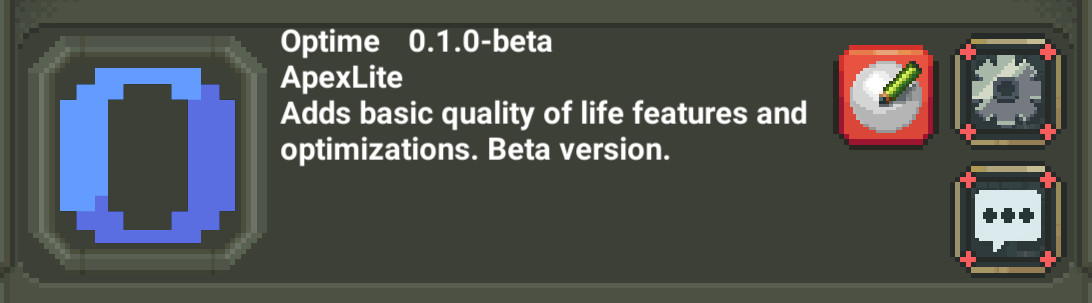
WorldBox FPS Boost Config – Key Features & Notes
- Current QoL Features
- Hide Welcome Window: hides the window that pops up at the start of the game
- Time Stop Projectiles: freeze projectiles while the game is paused
- Disable Analytics: opt-out of analytics automatically sent to the developers
- FPS Counter: display an FPS counter on the top left-hand side of the screen
- Manual Frame Rate: adjust the max frame rate limit (go past 60fps)
- All of these can be disabled or changed in the mod's configuration window which can be opened by pressing the gear icon to the right of the mod in the mods list.
- Install Instructions
WorldBox PC System Requirements
Minimum Specs
- Requires a 64-bit processor and operating system
- OS: Windows 10
- Processor: 2.0 Ghz
- Memory: 2.5 GB RAM
- Graphics: 128mb Video Memory, capable of Shader Model 2.0+
- DirectX: Version 9.0c
- Storage: 300 MB available space
- Additional Notes: (╯°□°)╯︵ 🌏
Recommended Specs
- Requires a 64-bit processor and operating system
- OS: Windows 10
- Processor: Dual Core 3.0 Ghz
- Memory: 4 GB RAM
- Graphics: 256mb Video Memory, capable of Shader Model 2.0+
- DirectX: Version 9.0c
- Storage: 300 MB available space
- Additional Notes: (╯°□°)╯︵ 🌏
How to Install WorldBox FPS Boost Config on PC
- Download the WorldBox FPS & Stutter-Fix configuration .ZIP below and extract the preset files.
- Navigate to your WorldBox configuration folder (%LOCALAPPDATA%\[Game]\Saved\Config\Windows or installation folder).
- Back up your default .ini file, drop in the optimized config, and launch the game for smoother frame pacing.
WorldBox FPS Boost Config FAQ
Is this WorldBox fps boost config safe to use on Steam?
Yes. All files are scanned clean (AV Scanned: Clean) and designed for offline/single-player PC use. Always back up your original save or config folder first.
Where is the WorldBox save & config folder located on Windows?
Most modern PC releases store user saves and Engine.ini files inside %LOCALAPPDATA%, %APPDATA%, or %USERPROFILE%\Saved Games.
Buy the console and the game
| Item | Amazon | eBay |
|---|---|---|
| GTA 6 (PS5) | Amazon | eBay |
| GTA 6 (Xbox Series X) | Amazon | eBay |
| PlayStation 5 console | Amazon | eBay |
| Xbox Series X console | Amazon | eBay |
Links are affiliate links. We earn a small commission if you buy, at no extra cost to you.